

1
Access Gmail Settings
Click the Cog icon in the top right corner of Gmail and select “See all settings.”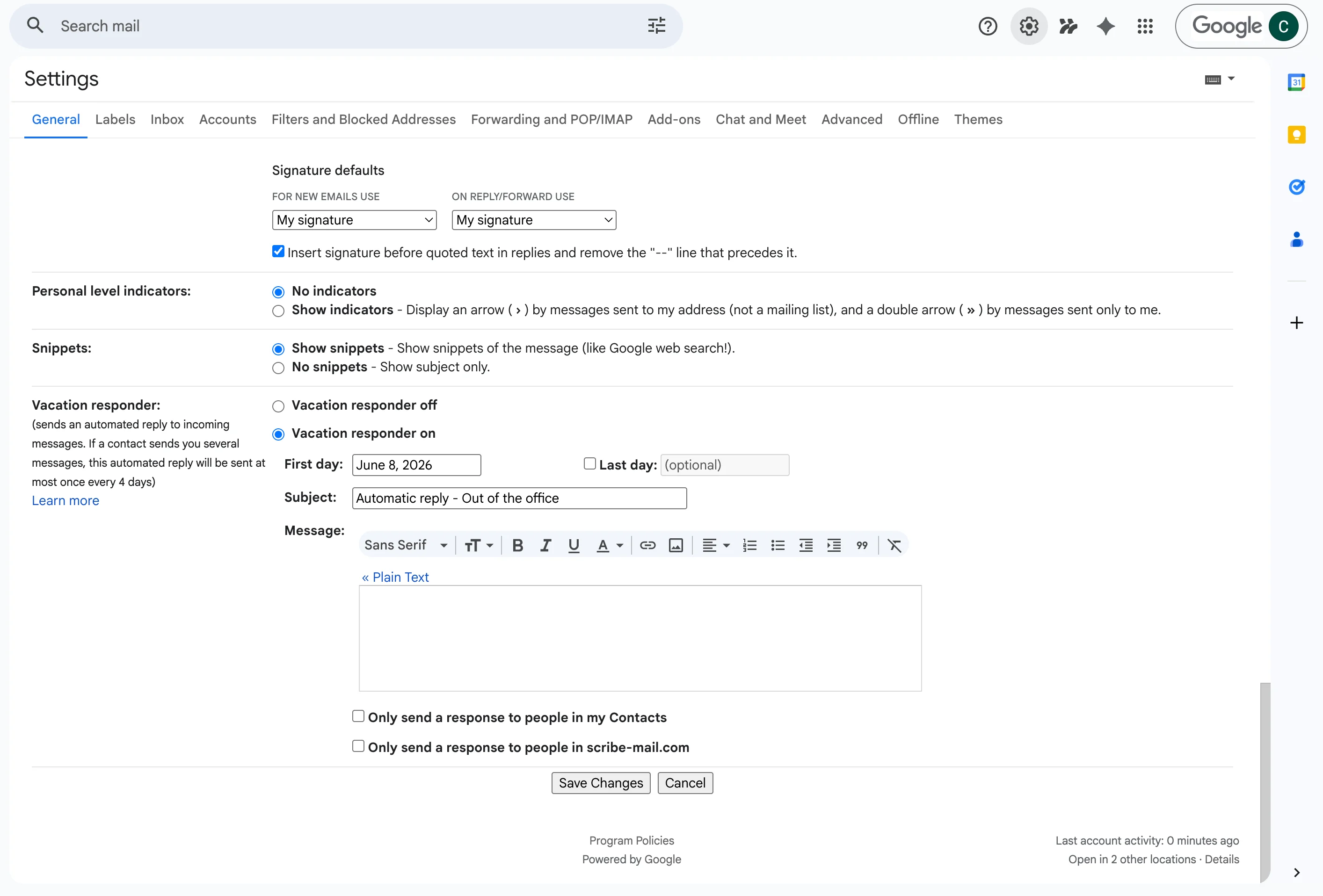
2
Navigate to the Vacation Responder section
Scroll down to the Vacation Responder section. Enter your away message and set the duration.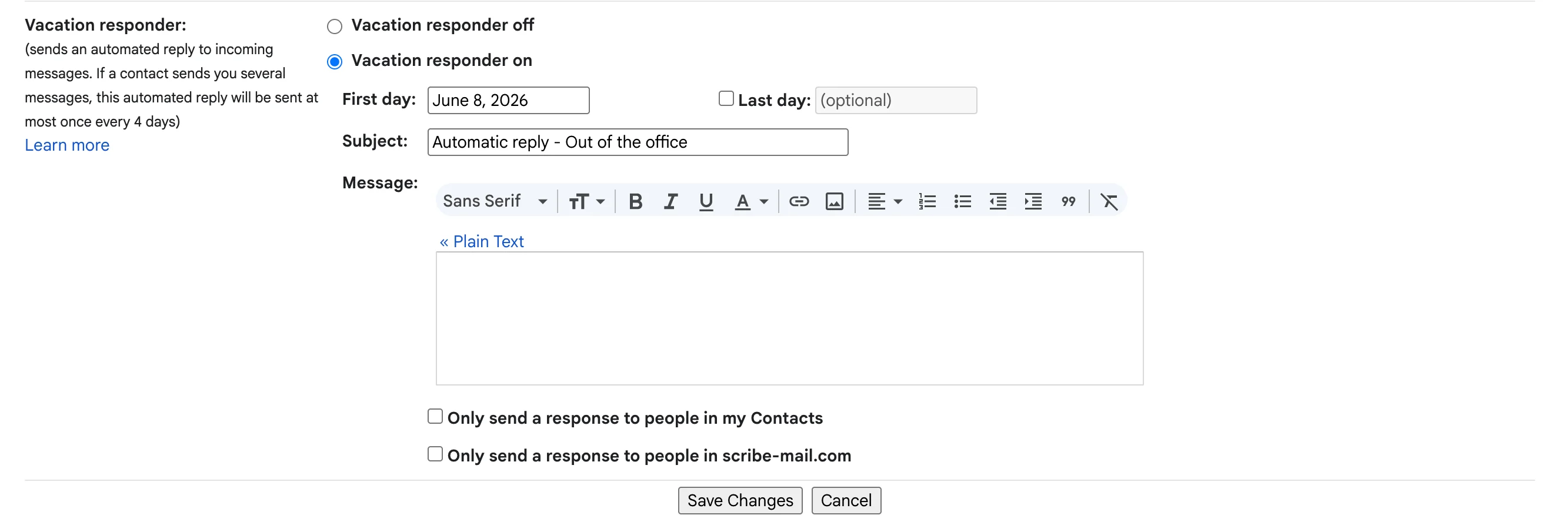
3
Enable Rich formatting
Click on “Plain text” above the message field to enable Rich formatting. Plain Text mode will prevent your signature from displaying correctly.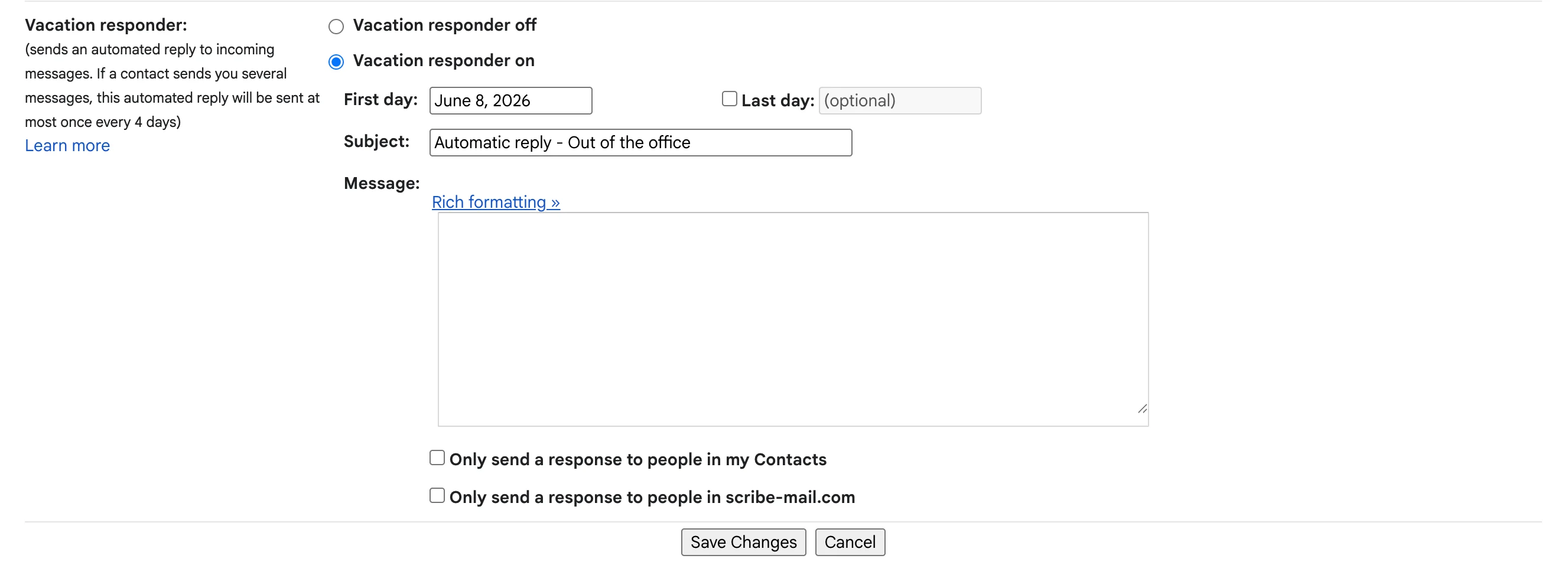
4
Save your changes
Once properly configured, your auto responses will maintain your professional Scribe signature while you are away.