

Members and teammates are different things in Scribe. Members log into the workspace and manage it. Teammates are the people whose email signatures you create and deploy. One person can be both.
Roles and access levels
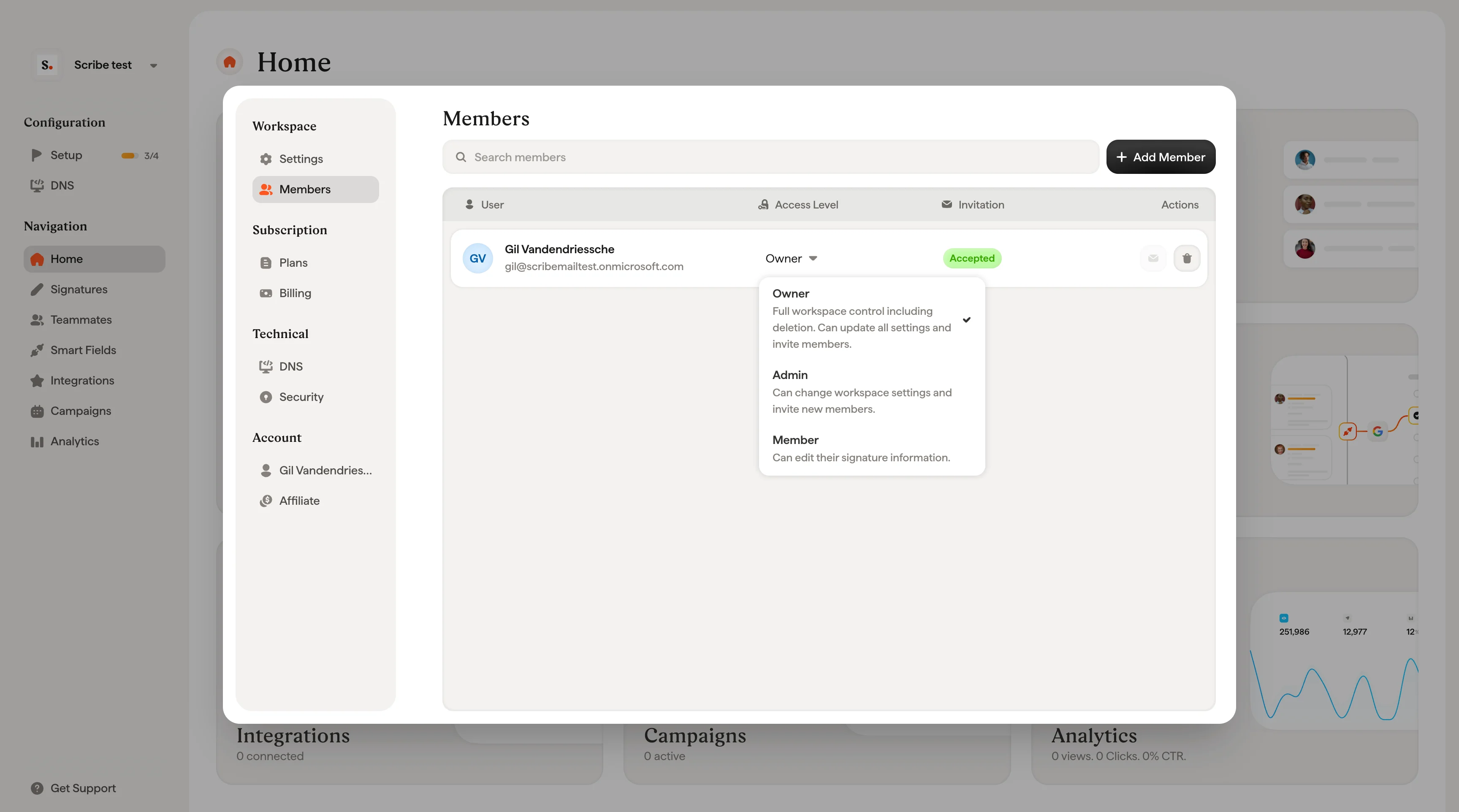
Every member is assigned one of three roles. You can change a member’s role at any time from the Access Level dropdown in the members table.Owner
Full workspace control including deletion. Can update all settings and invite members. Only one owner is allowed per workspace, and only the current owner can transfer ownership.Admin
Can change workspace settings and invite new members. Cannot delete the workspace or transfer ownership.Member
Can edit their own signature information. No access to workspace settings or other management features.Invite a new member
1
Open the Add Member modal
Click + Add Members in the top right of the Members page.
2
Enter an email and select a role
Type the new member’s email address in the Email field, then pick a role from the Role dropdown. The dropdown describes what each role can do to help you choose.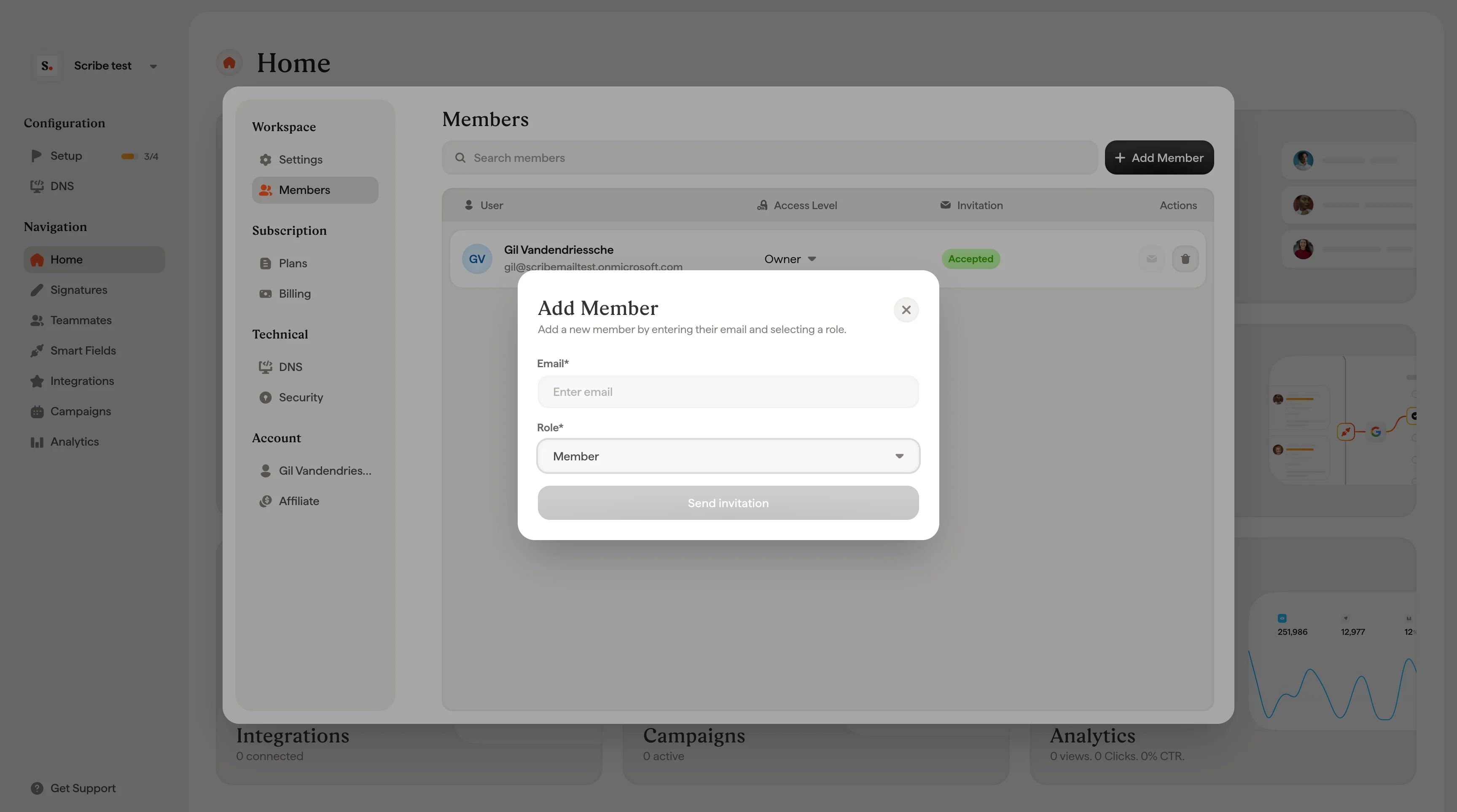
3
Send the invitation
Click Send invitation. A confirmation screen appears showing who was invited and which role they were assigned.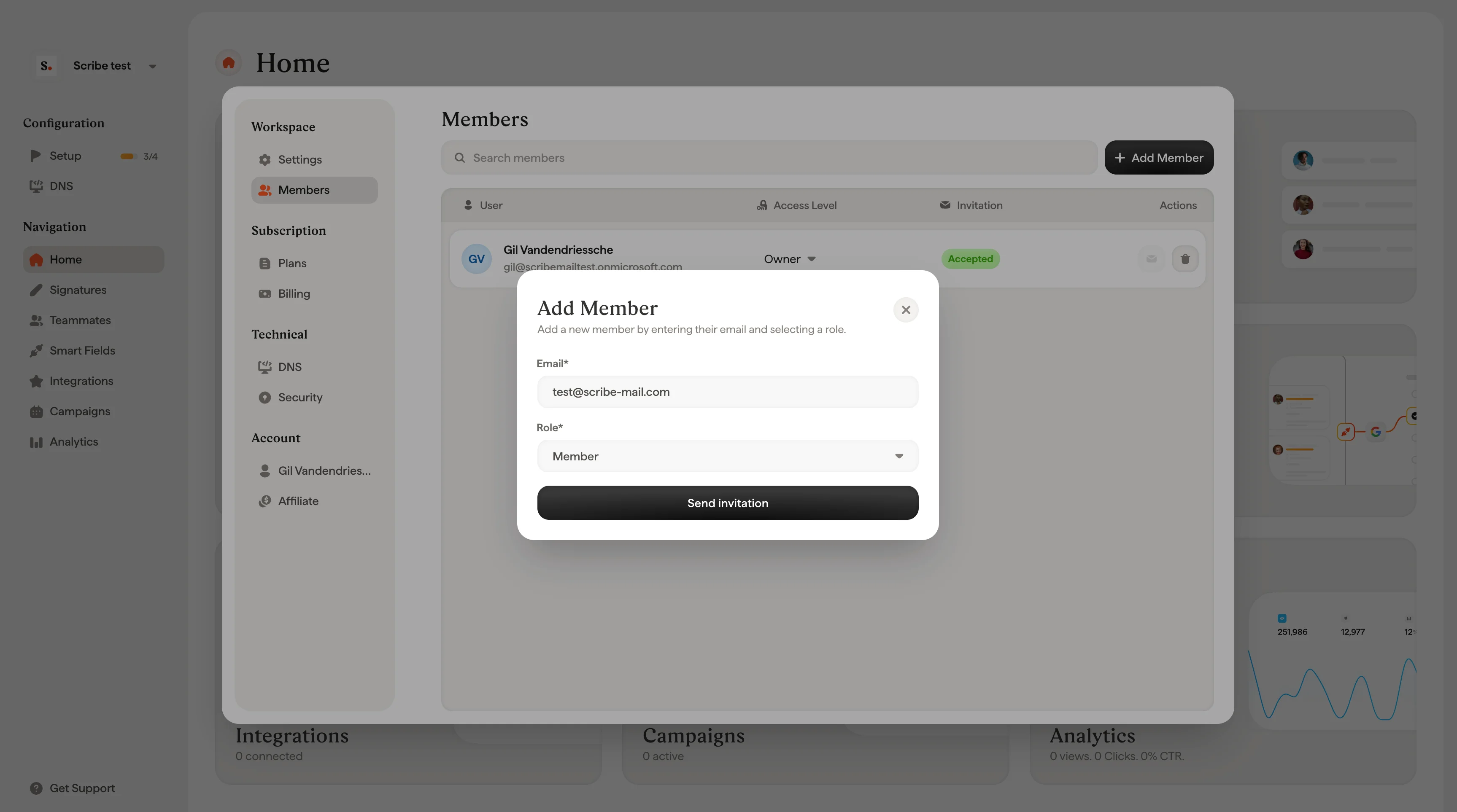
Resend an invitation
If a member hasn’t accepted their invitation yet, you can resend it. Find the member in the table (they’ll show a Pending status) and click the envelope icon in the Actions column.Change a member’s role
Click the Access Level dropdown next to any member and select a new role. The change takes effect immediately. You cannot change the Owner role this way. Only the current Owner can transfer ownership.Remove a member
Click the trash icon in the Actions column for the member you want to remove. A confirmation dialog will ask you to confirm, since removing a member permanently revokes their access to the workspace. Click Delete to confirm or Cancel to go back.Related articles
- Account: manage your personal profile that follows you across workspaces.
- Workspaces: create and manage the workspaces members belong to.
- Configure SSO/SAML: let members sign in with your identity provider.