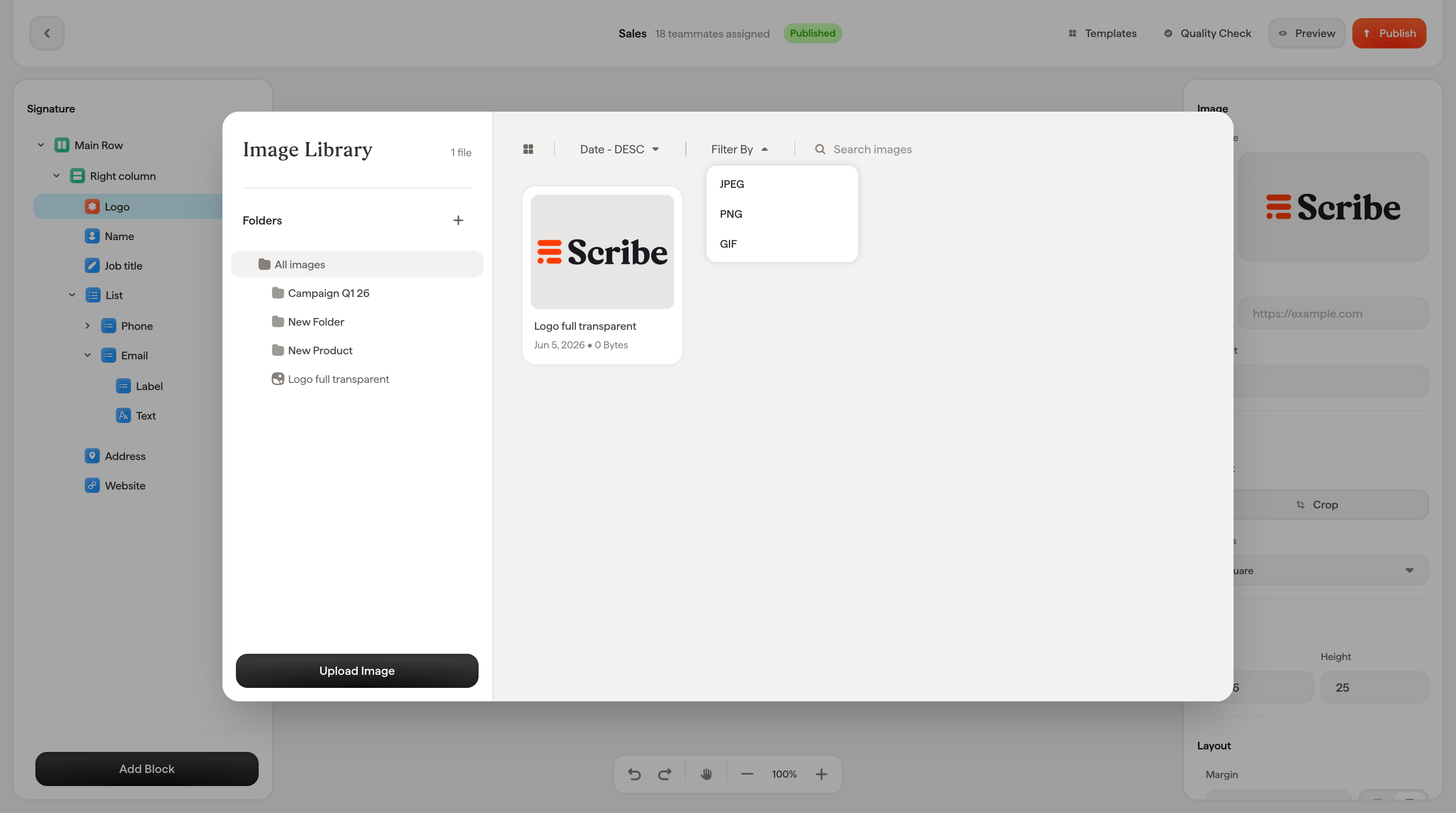
Upload and organize signature images in the Image Library, sort them into folders, and edit with auto crop and background removal before adding them.
The Image Library is a shared asset manager for all images used in your signatures: logos, banners, profile pictures, and more. Open it by clicking Update image in the styling panel when an image block is selected.
Drag and drop a file directly into the upload area
Select File to browse your computer
Import from an external source: Canva, Dropbox, Google Drive, OneDrive, Box, or SharePoint
Supported formats are JPEG, PNG, and GIF, with a maximum file size of 5 MB. Images are automatically resized to fit your signature, and you can fine-tune dimensions later in the styling panel.
For logos and icons, use PNG with a transparent background. This ensures your image looks clean regardless of the email client’s background color.
The left sidebar shows your folder structure. Use folders to keep assets organized. For example, separate folders for logos, banners, and campaign images.
Click the + next to “Folders” to create a new folder
Click the pencil icon on a folder to rename it
Click the trash icon to delete a folder
Folders can be nested. Use the + on an existing folder to create a subfolder
Click a folder to browse its contents. Use the ← Root link to navigate back to the top level.
Click Edit image to open the built-in editor, which offers two tools:
Auto Crop: Automatically trims whitespace or empty areas around your image. Useful for cleaning up logos that have extra padding.
Remove Background: Strips the background from your image, leaving only the foreground subject. Great for product images or headshots that need a transparent background.
You can also manually crop by dragging the blue handles to define the area you want to keep.Click Save to apply your edits, or Cancel to discard them.
Email clients that support dark mode can invert or alter how images display. This behavior is controlled entirely by the recipient’s email client, and there is currently no reliable technical way to provide a separate dark mode version of an image that all email clients will respect. For this reason, Scribe does not offer dark mode image variants.The best approach is to upload images that look good in both light and dark mode.
Use logos and images that remain visible on any background. A logo with dark colors on a transparent background can become invisible in dark mode. To avoid this, use a version of your logo with a solid background, or choose a color variant that stays readable on both light and dark surfaces.