

No action needed from your teammates.
Changes in your Cal.com auto-sync to Scribe.
SOC 2 Type II Certified. Your data is safe.
Installation guide
Prerequisites
- Admin or owner access to your Cal.com team or organization
- A Cal.com account on a Teams or Organizations plan
- A Scribe account with admin access
1
Connect Cal.com integration
Click Connect Cal.com to start the integration.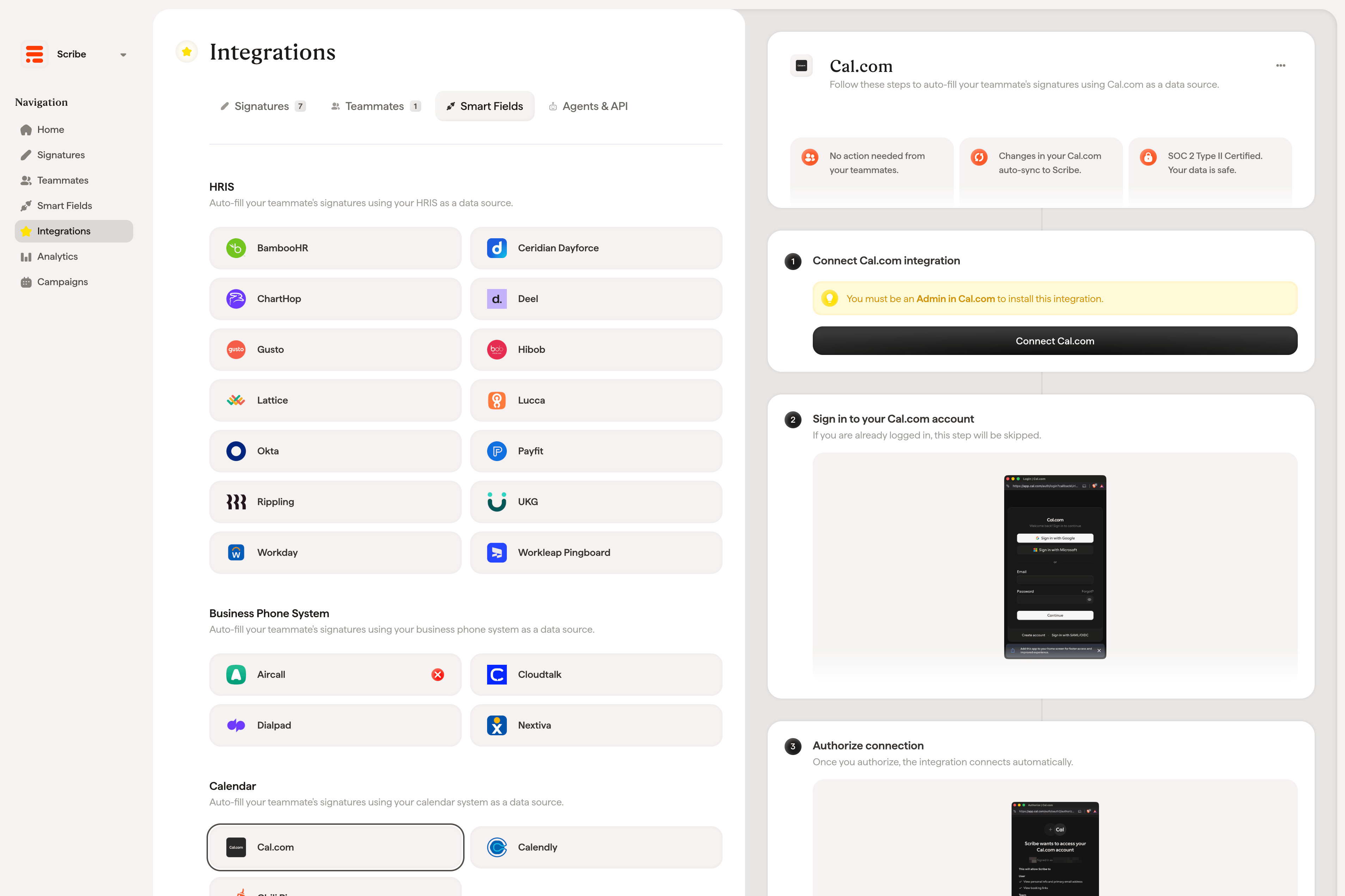
2
Sign in to your Cal.com account
If you are already logged in, this step will be skipped.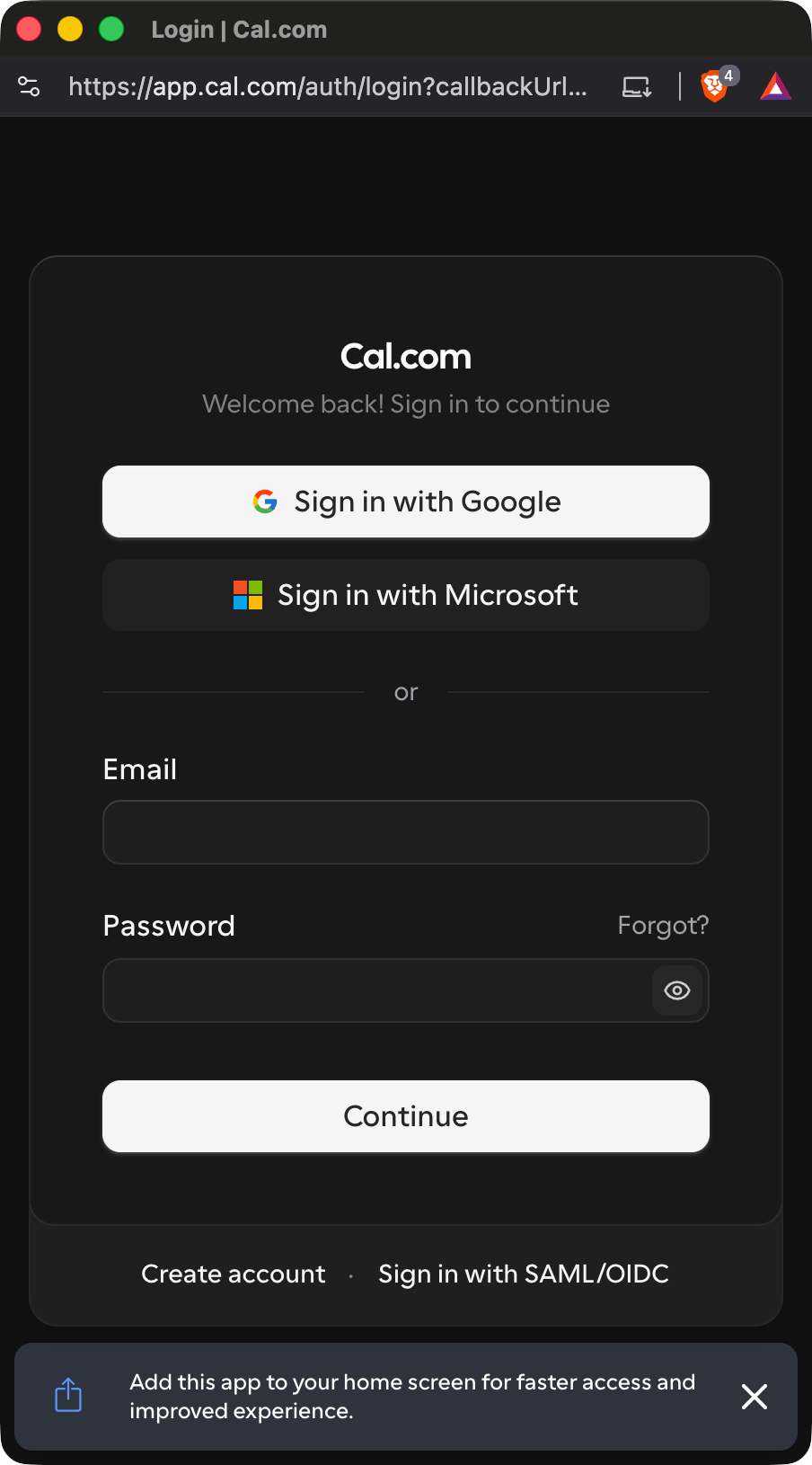
3
Authorize connection
Once you authorize, the integration connects automatically. Click Allow to complete the integration.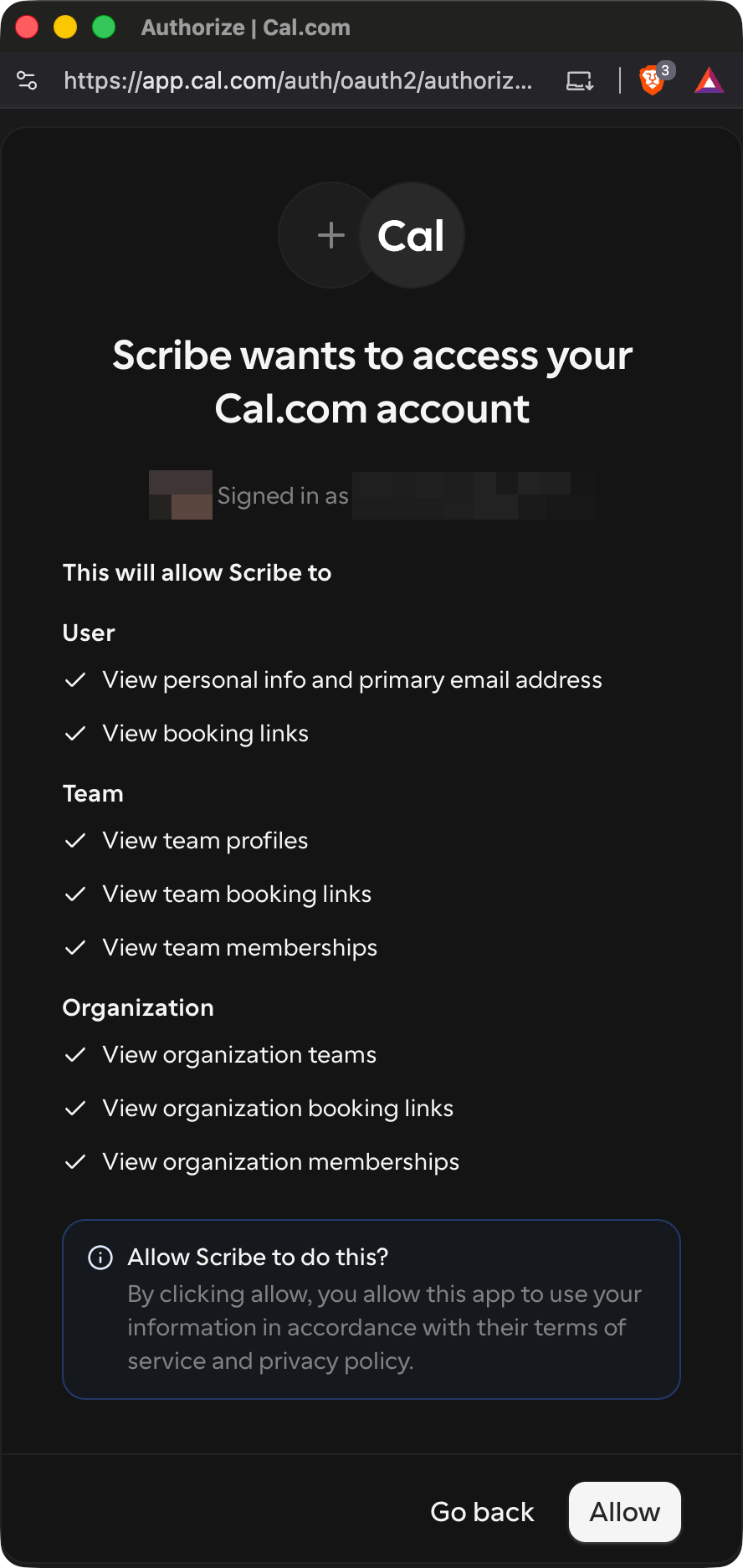
Related articles
- Calendly: sync Calendly data into your signatures.
- Chili Piper: sync Chili Piper data into your signatures.
- Assign teammates to a signature: use Smart Field conditions to assign signatures automatically.