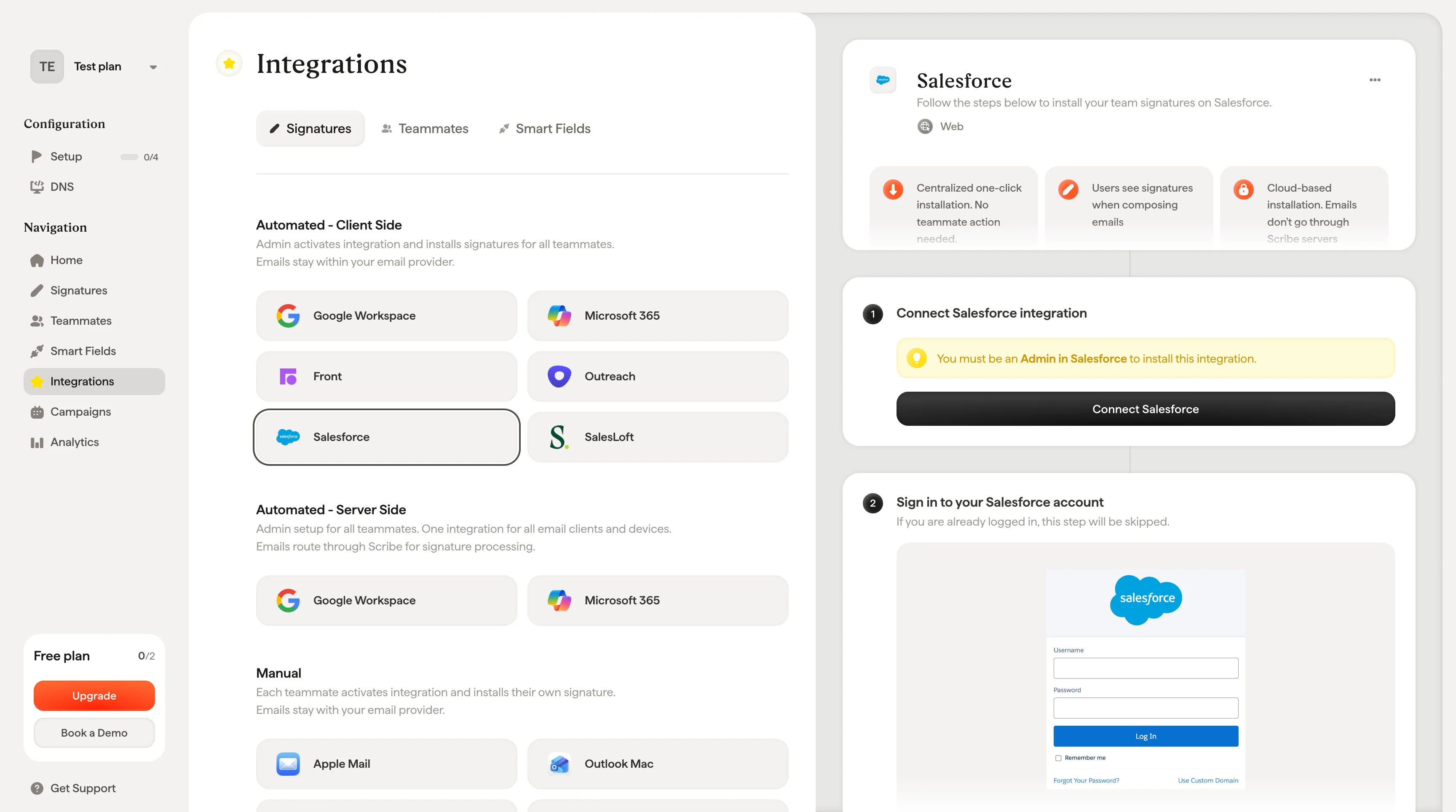
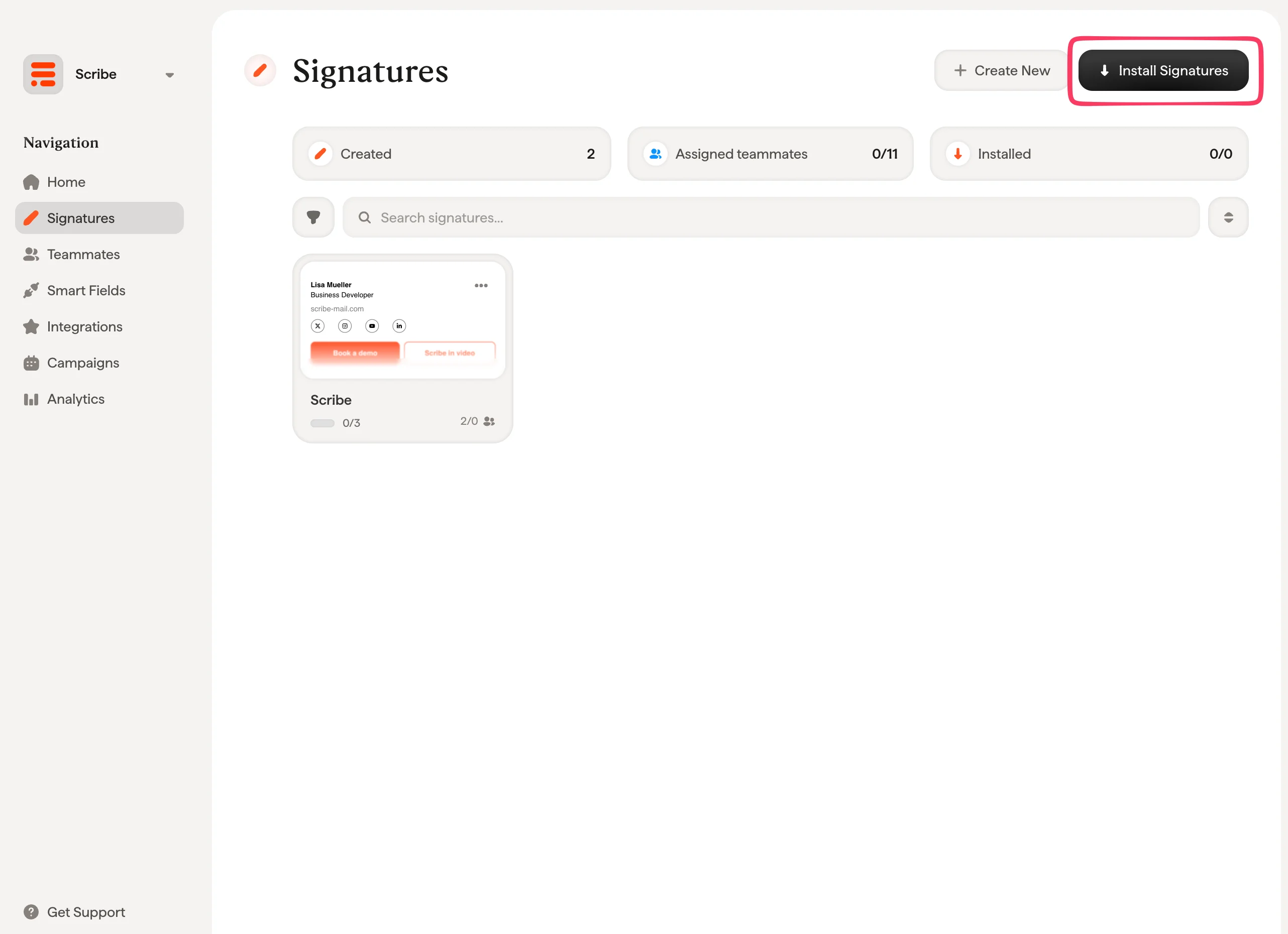
Install Scribe email signatures across your team’s Salesforce in one click by connecting the integration as a Salesforce admin, no teammate action needed.
Centralized one-click installation. No teammate action needed. Users see signatures when composing emails. Cloud-based installation: emails don’t go through Scribe servers.
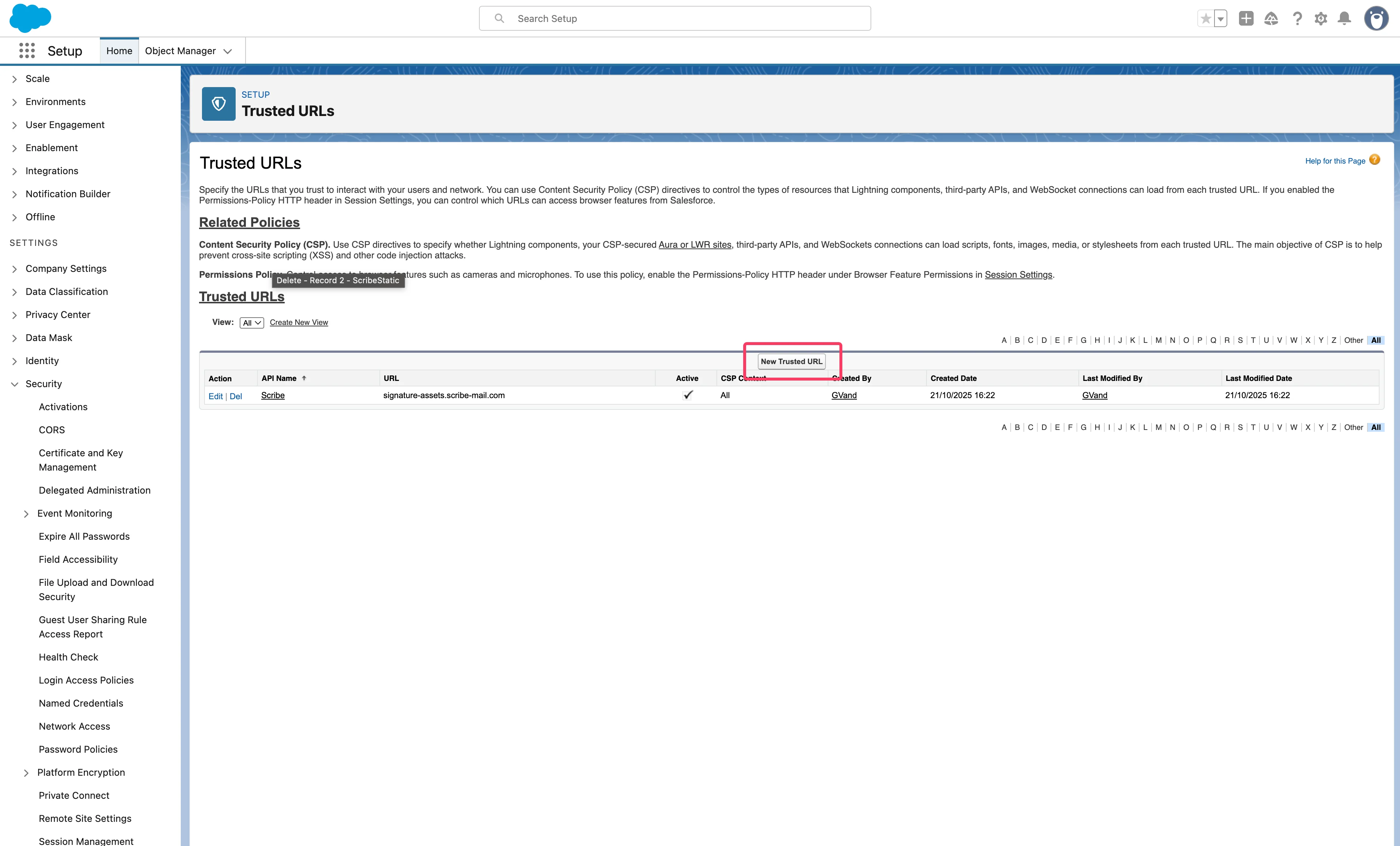
To display your signature correctly in Salesforce, you need to add trusted domains in your Salesforce account settings.In Salesforce settings, go to Security > Trusted URLs, then add the following URLs by clicking “New Trusted URL” button. You only need to select ‘img-src’ in CSP Directives.