

How it works
Server-side installation changes your mail routing, not your teammates’ mailboxes. Nothing is installed on their devices, and no add-in runs in their email client. Instead, the setup below adds one hop to your outbound mail flow, and the signature is added to each message while it is in transit.- A teammate sends an email. Gmail accepts it from whatever client or device they used, so the same rule covers web, desktop, Apple Mail, iOS and Android. Tools that send through a teammate’s mailbox are covered too: HubSpot sales emails, and any other CRM or sequencer connected to Gmail, pick up the signature with no extra setup, as long as the From address belongs to a teammate whose signature you have installed. A tool that sends from its own servers instead of through Gmail, such as HubSpot marketing email, never reaches this rule and gets no signature.
- Google Workspace routes the message to Scribe. The content compliance rule you create below matches outbound and internal outbound mail and routes it to the Scribe host,
smtp.server.scribe-mail.com, over TLS. - Scribe adds the signature. Scribe inserts the teammate’s published signature, choosing the right variant for the context, then re-signs the message so it still authenticates after the change, and stamps it with an
X-Scribe-Processedheader. - The message returns to Google Workspace. Scribe hands it back through the SMTP relay service, which is configured to accept connections only from Scribe’s two IP addresses and only over TLS.
- Google Workspace delivers it. The
X-Scribe-Processedheader stops the compliance rule matching a second time, so the message goes out to the recipient the same way any other message does.
X-Scribe-Processed, a routing header telling the relay where to hand the message back, a refreshed DKIM-Signature, an ARC chain, and the Content-Type matching the rewritten body. Your recipients, subject, attachments and the text your teammate wrote are passed through unchanged.
Installation guide
Add host

Google Admin Gmail Hosts section
Click the "ADD ROUTE" link and fill in the form
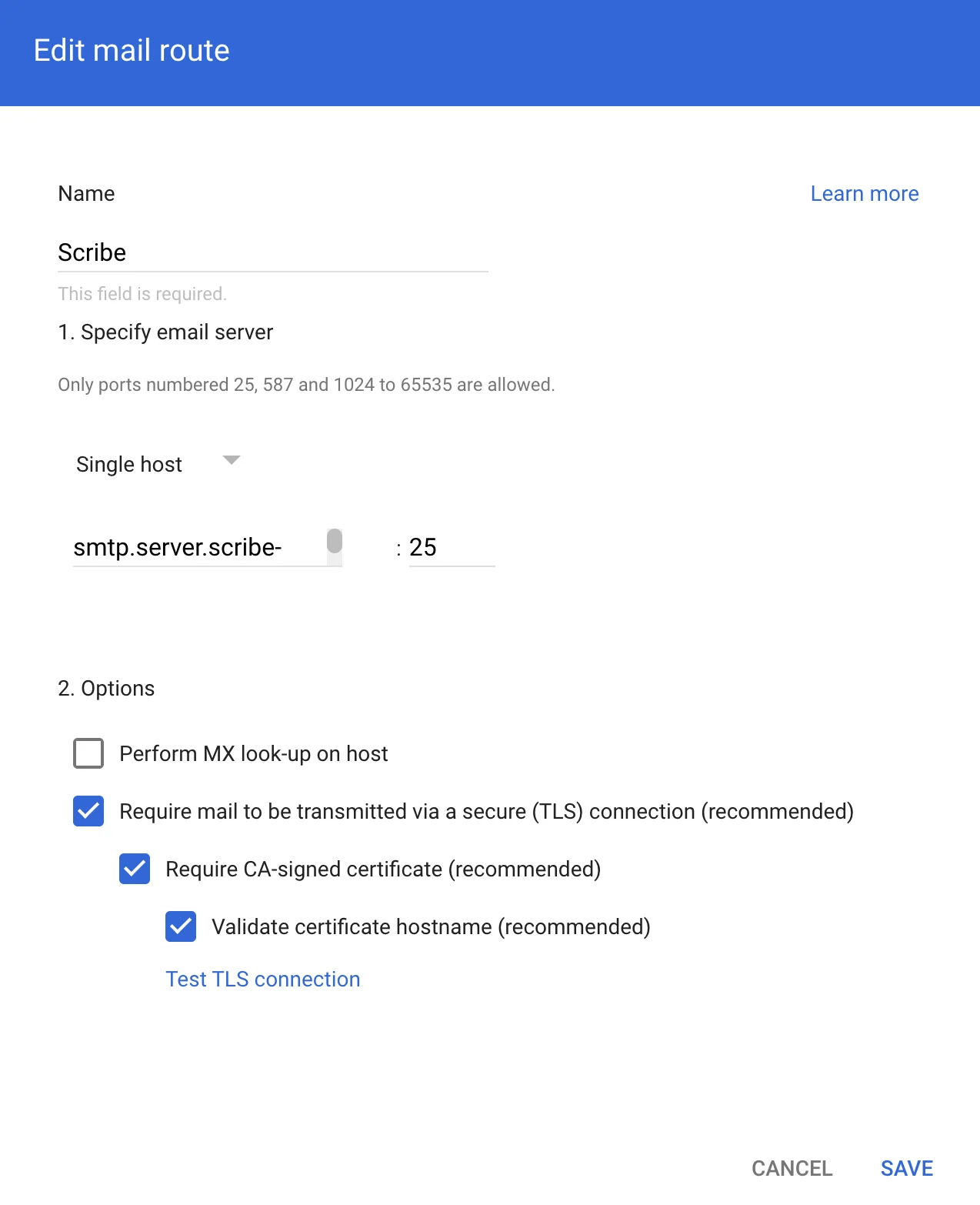
Edit mail route form with Scribe host configuration
Configure the SMTP relay service

Google Admin Gmail Routing section
Click Configure under "SMTP relay service"
SMTP relay service Configure button
Fill in the SMTP relay form
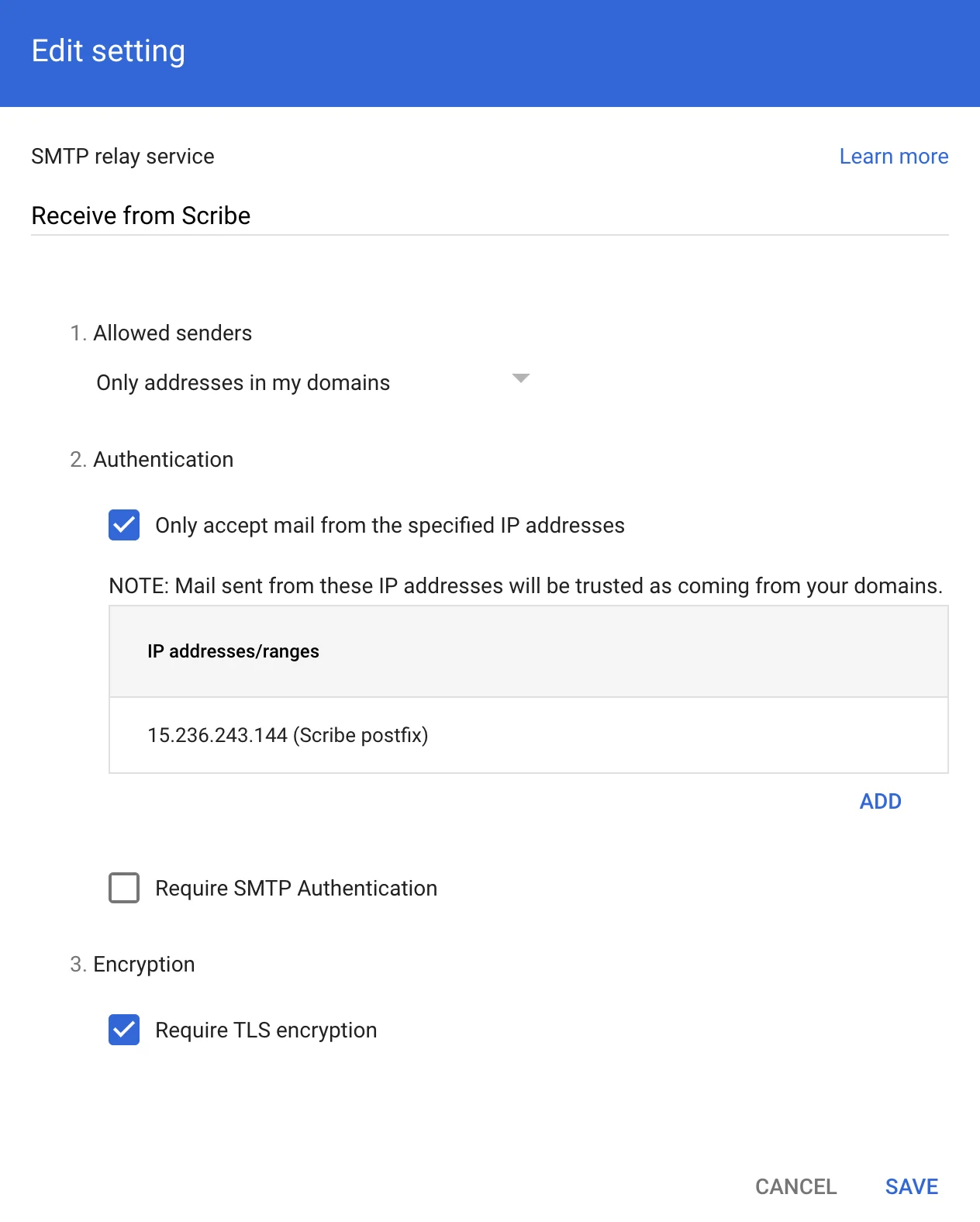
SMTP relay service configuration form
Route your emails through the created Host

Google Admin Gmail Compliance section
Click Configure under "Content compliance"
Content compliance Configure button
Fill in the Content compliance form
- Location: Full headers, Match type: Not contains text, Content:
X-Scribe-Processed. This prevents processing your email multiple times. - Location: Envelope sender, Match type: Does not match regex, Regexp:
.*@google\.com$. This excludes system mail such as Google Forms receipts (from forms-receipts-noreply@google.com), which Google’s SMTP relay rejects if routed through Scribe. - Location: Sender header, Match type: Does not match regex, Regexp:
.*@google\.com$. This excludes mail Google sends on a teammate’s behalf, such as Google Calendar reminders. Their envelope sender is the teammate, so the previous expression misses them, but their From address is calendar-notification@google.com. Routed through Scribe, they fail google.com’s DMARC policy: the reminder is rejected and the teammate gets a bounce instead.
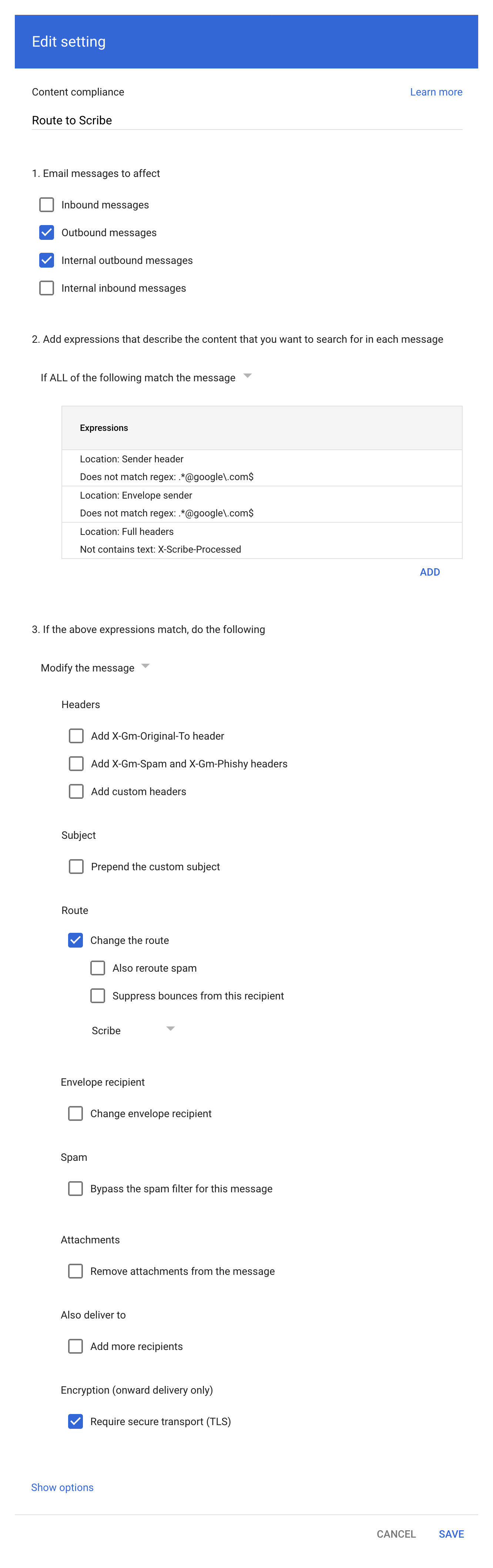
Content compliance form configuration
Add the compliance rule expressions
- Location: Full headers
- Match type: Not contains text
- Content: X-Scribe-Processed
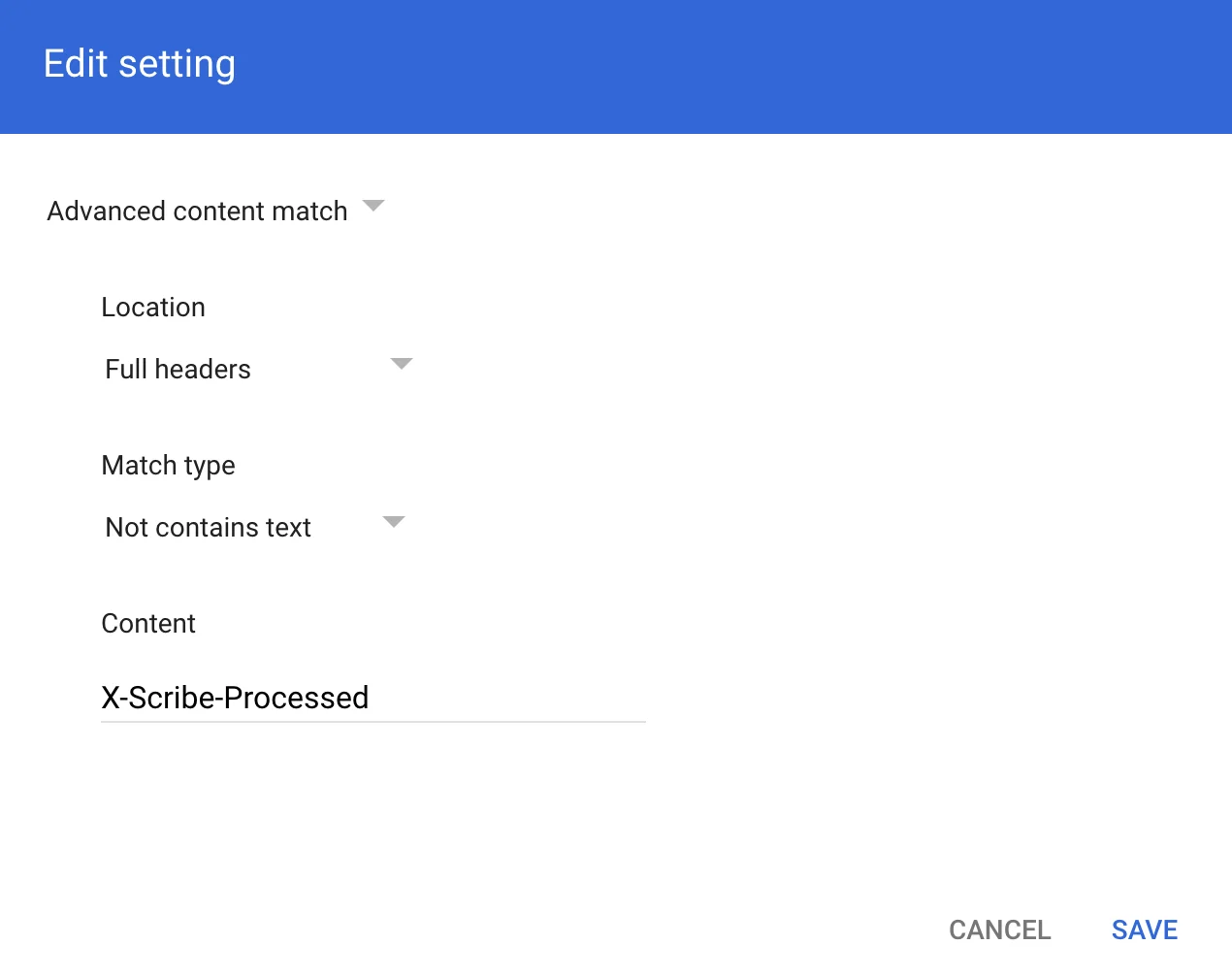
Compliance rule expression modal
.*@google\.com$.Configure DKIM
Configure DKIM button in Scribe
Install team signatures
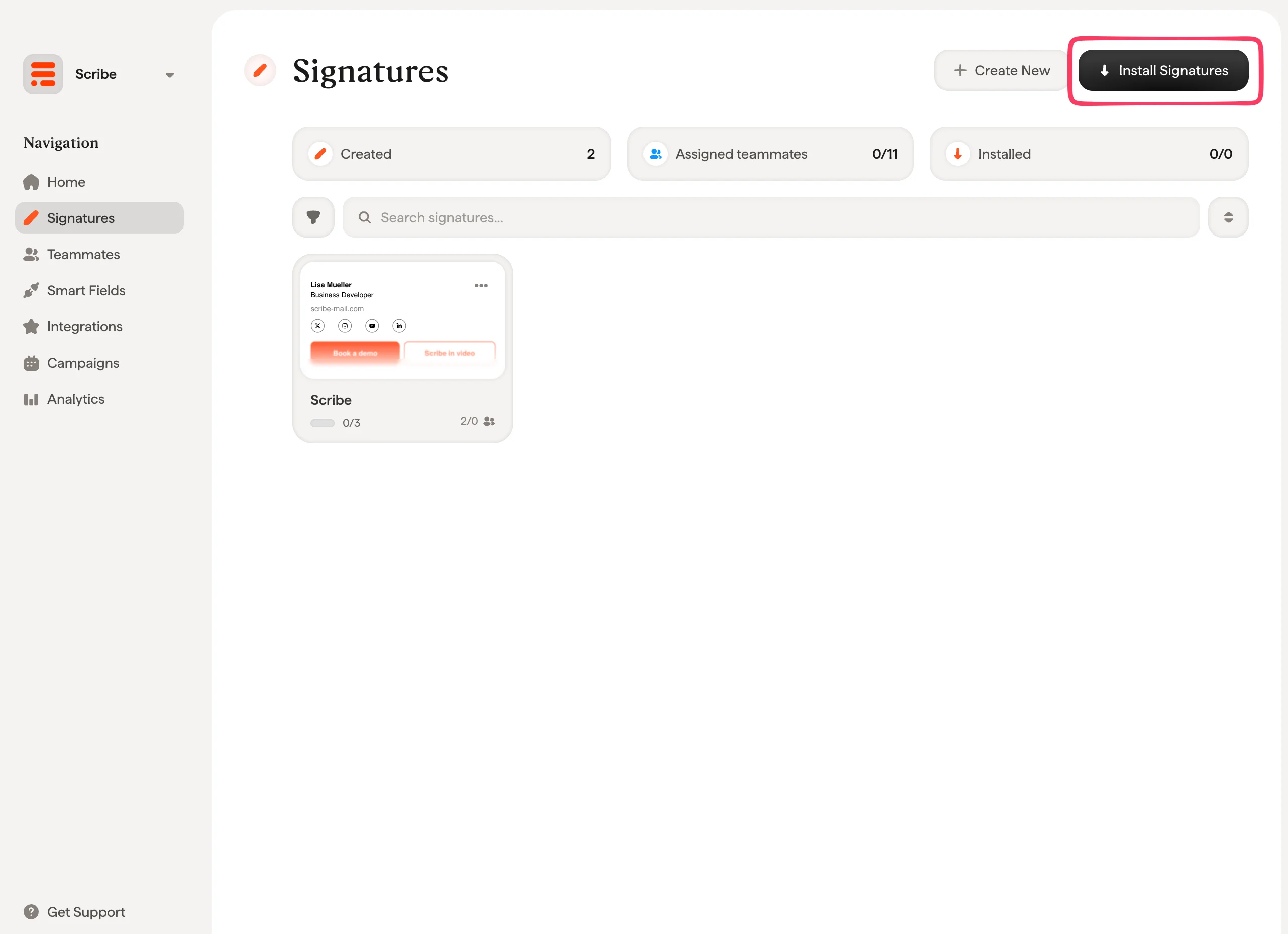
Scribe signatures list with Install Signatures button
IT and security FAQ
Questions that come up most often when an IT team reviews this integration.Which emails are routed through Scribe?
Which emails are routed through Scribe?
- Messages whose full headers already contain
X-Scribe-Processed, so nothing is processed twice. - Messages whose envelope sender matches
.*@google\.com$, which covers Google system mail such as Google Forms receipts. Google’s SMTP relay rejects that mail if it is routed through Scribe. - Messages whose From address matches
.*@google\.com$, which covers mail Google sends on a teammate’s behalf, such as Google Calendar reminders. Scribe cannot sign for google.com, so that mail fails google.com’s DMARC policy if it is routed through Scribe.
550 5.7.26 Unauthenticated email from google.com is not accepted due to domain's DMARC policy. Edit the rule in Google Admin and add the Sender header expression to stop them.Is the connection to Scribe encrypted?
Is the connection to Scribe encrypted?
What do we need to allow through the firewall?
What do we need to allow through the firewall?
Does routing through Scribe affect SPF, DKIM or DMARC?
Does routing through Scribe affect SPF, DKIM or DMARC?
- A fresh
DKIM-Signature, signed with a key Scribe generates for your domain and published as ascribe._domainkeyrecord. It covers theFrom,To,Cc,SubjectandMessage-IDheaders along with the body. - An ARC chain (RFC 8617):
ARC-Authentication-Results,ARC-Message-SignatureandARC-Seal. These record the authentication results the message carried when Scribe received it, so a receiving server can tell that an authorized intermediary modified it rather than reading the change as tampering.
What stops a message being processed twice?
What stops a message being processed twice?
X-Scribe-Processed header, and the content compliance rule matches only messages whose full headers do not contain it, so a message coming back from Scribe no longer matches and is delivered normally.As a second guard, Scribe checks whether the body already carries the signature before inserting one. A message that reaches it twice still goes out with a single signature.Why can't teammates see the signature while composing?
Why can't teammates see the signature while composing?
Do replies and internal emails get a different signature?
Do replies and internal emails get a different signature?
- On-reply, when the subject starts with a reply or forward prefix such as
Re:,Fw:orFwd:, including the localized equivalents. - Internal, when every recipient is on the same domain as the sender.
- Primary in every other case.
What does Scribe do with our email content?
What does Scribe do with our email content?
How do we roll it back?
How do we roll it back?
Related articles
- Integrations overview: all the ways to deploy Scribe signatures, cloud or server side.
- Microsoft 365 (server side): route mail through Scribe for all-device coverage.
- Signature variants: on-reply and internal variants for Outlook and server side.