> ## Documentation Index
> Fetch the complete documentation index at: https://help.scribe-mail.com/llms.txt
> Use this file to discover all available pages before exploring further.
# Scribe API authentication: API keys and scopes
> Authenticate Scribe API requests with a workspace API key sent as a Bearer token. Create keys, scope them to resources, and keep them secure.
The Scribe API authenticates every request with an API key, sent as a Bearer token in the `Authorization` header:
```text theme={null}
Authorization: Bearer YOUR_API_KEY
```
A request with a missing or invalid key returns [`401`](/api-reference/errors).
## How API keys work
* **A key acts as a member.** Each key is created by a workspace member and acts as that member, with the same role, narrowed by the scopes you grant.
* **A key belongs to one workspace.** To call the API for another workspace, create a key from that workspace.
* **Keys expire.** Keys expire one year after they are created. Create a new key before the old one expires.
## Create an API key
In the Scribe dashboard, go to **Settings**, then open **API keys**.
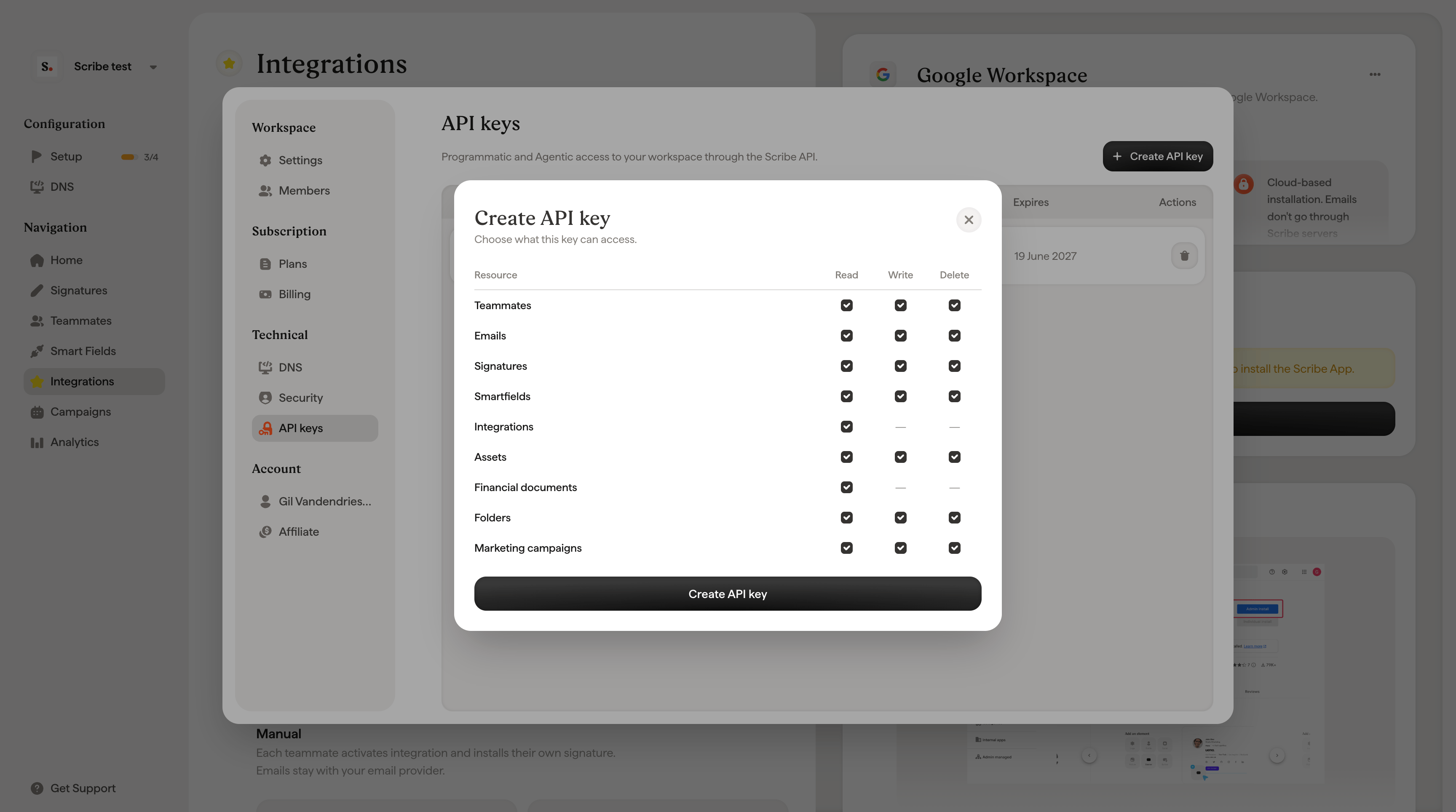
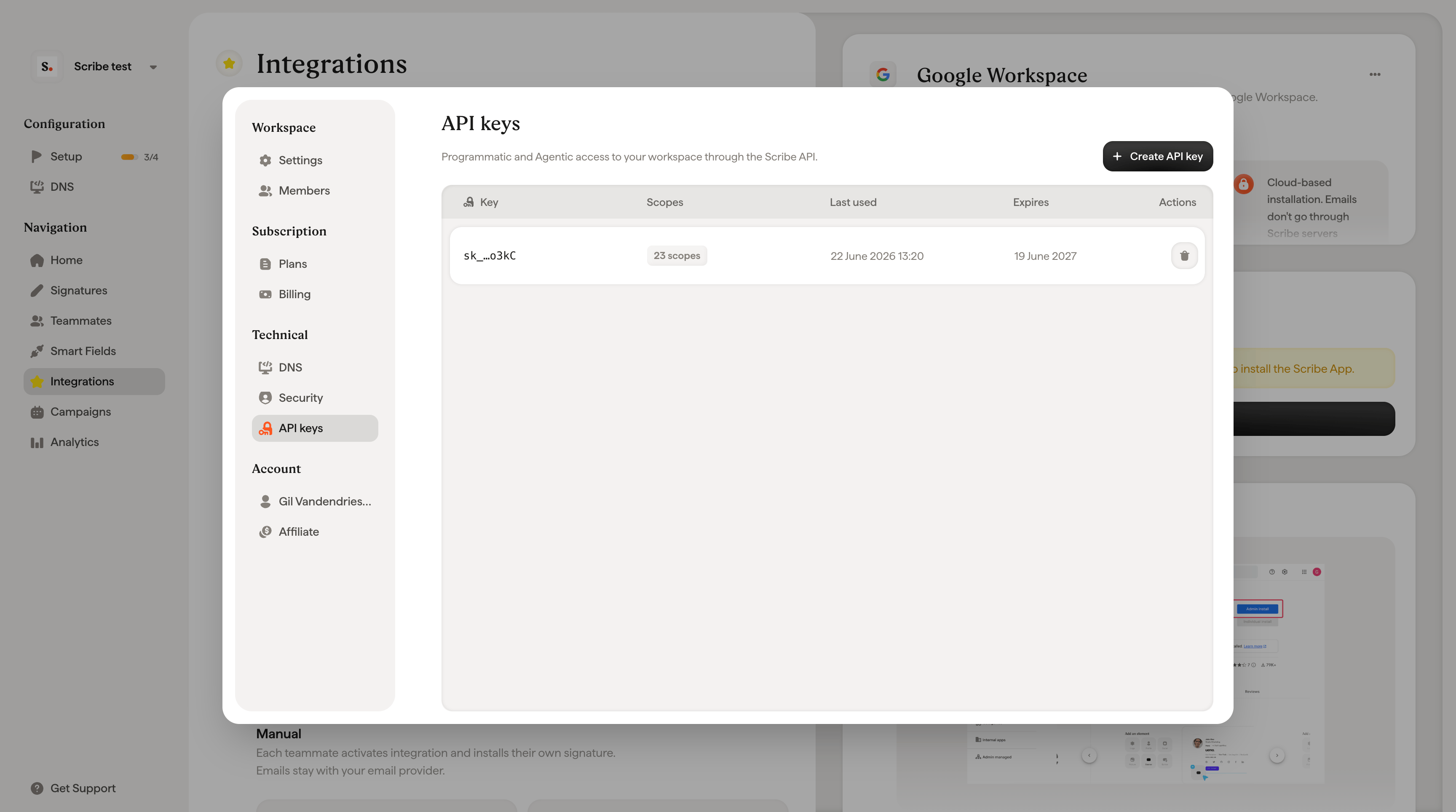 Select **Create API key**, give it a descriptive name (for example, the name of the integration or agent that will use it), and choose its scopes.
 Copy the key and store it somewhere secure, such as a secret manager. The full key is shown only once.
Treat an API key like a password. Anyone who has it can act as the member who created it, within that member's scopes. If a key is exposed, delete it from the dashboard and create a new one.
## Scopes
A key is limited to the scopes you grant it. Scopes use a `resource:action` format. A request that calls an endpoint outside the key's scopes returns [`403`](/api-reference/errors).
Grant the narrowest set of scopes an integration needs. For example, a reporting script that only reads signatures needs `signatures:read` and nothing else.
| Resource | Read | Write | Delete |
| ------------------- | -------------------------- | --------------------------- | ---------------------------- |
| Teammates | `teammates:read` | `teammates:write` | `teammates:delete` |
| Emails | `emails:read` | `emails:write` | `emails:delete` |
| Signatures | `signatures:read` | `signatures:write` | `signatures:delete` |
| Smart fields | `smart_fields:read` | `smart_fields:write` | `smart_fields:delete` |
| Folders | `folders:read` | `folders:write` | `folders:delete` |
| Assets | `assets:read` | `assets:write` | `assets:delete` |
| Marketing campaigns | `marketing_campaigns:read` | `marketing_campaigns:write` | `marketing_campaigns:delete` |
Integrations and financial documents are read only. They expose a single read scope each: `integrations:read` and `financial_documents:read`.
Integrations are connected and configured in the dashboard, never through an API key. A key can read them, but cannot activate, edit, or remove them.
## Keep your keys secure
* Store keys in environment variables or a secret manager. Never commit them to source control or ship them in client-side code.
* Use a separate key per integration, so you can delete one without affecting the others.
* Grant the minimum scopes required for the task.
* Delete unused keys, and create a replacement before a key expires.
Copy the key and store it somewhere secure, such as a secret manager. The full key is shown only once.
Treat an API key like a password. Anyone who has it can act as the member who created it, within that member's scopes. If a key is exposed, delete it from the dashboard and create a new one.
## Scopes
A key is limited to the scopes you grant it. Scopes use a `resource:action` format. A request that calls an endpoint outside the key's scopes returns [`403`](/api-reference/errors).
Grant the narrowest set of scopes an integration needs. For example, a reporting script that only reads signatures needs `signatures:read` and nothing else.
| Resource | Read | Write | Delete |
| ------------------- | -------------------------- | --------------------------- | ---------------------------- |
| Teammates | `teammates:read` | `teammates:write` | `teammates:delete` |
| Emails | `emails:read` | `emails:write` | `emails:delete` |
| Signatures | `signatures:read` | `signatures:write` | `signatures:delete` |
| Smart fields | `smart_fields:read` | `smart_fields:write` | `smart_fields:delete` |
| Folders | `folders:read` | `folders:write` | `folders:delete` |
| Assets | `assets:read` | `assets:write` | `assets:delete` |
| Marketing campaigns | `marketing_campaigns:read` | `marketing_campaigns:write` | `marketing_campaigns:delete` |
Integrations and financial documents are read only. They expose a single read scope each: `integrations:read` and `financial_documents:read`.
Integrations are connected and configured in the dashboard, never through an API key. A key can read them, but cannot activate, edit, or remove them.
## Keep your keys secure
* Store keys in environment variables or a secret manager. Never commit them to source control or ship them in client-side code.
* Use a separate key per integration, so you can delete one without affecting the others.
* Grant the minimum scopes required for the task.
* Delete unused keys, and create a replacement before a key expires.